
Beacon Configuration
Download Blesh Physical Web App
The first thing you would like to do after purchasing your beacon device is to download the Blesh Physical Web App from Google Play or App Store according to the device you are currently using.
Physical Web Pack
If you still haven't obtained your Physical Web Device we recommend you to purchase it before continuing with this guide. You can purchase your device by clicking this link.
App and Beacon Setup
After downloading, continue with launching your app. You will automatically see a notification that will ask you to turn on your device's bluetooth.
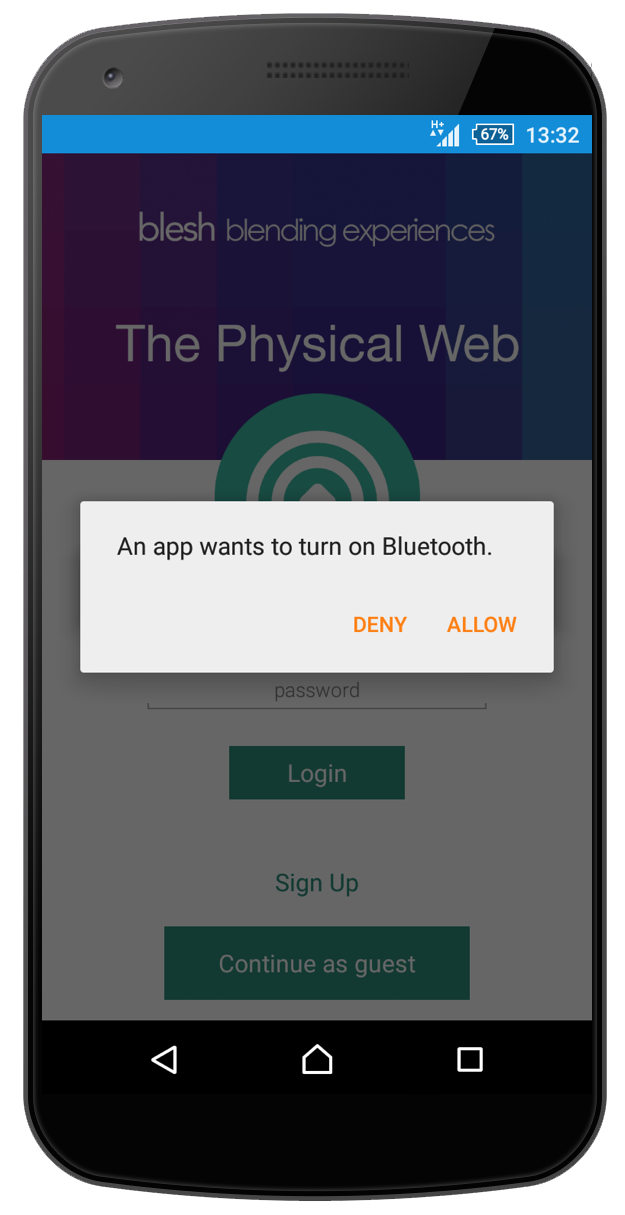
Bluetooth
Don't forget to turn on your bluetooth. Activating your device's bluetooth is necessary for you to be able to connect to your physical web device.
After turning on your bluetooth you will see the login page of your application. If you are not yet registered to the BleshCMS platform we recommend you to register to configure and control your beacon. You can either register by clicking on the sign up button from inside the app or by clicking on this link. You can always continue as a guest by clicking on the Continue as guest button if you don't want to sign up just yet.
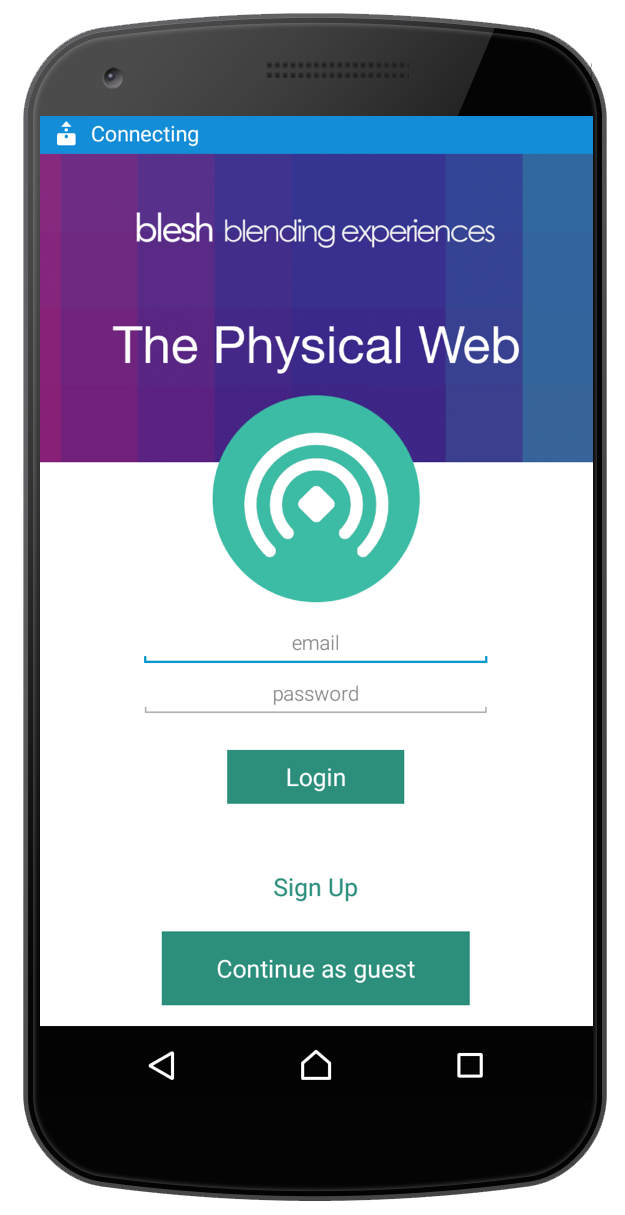
After logging in, your app will automatically start to search for nearby beacons. You can see from the picture below what you will observe on your phone screen.
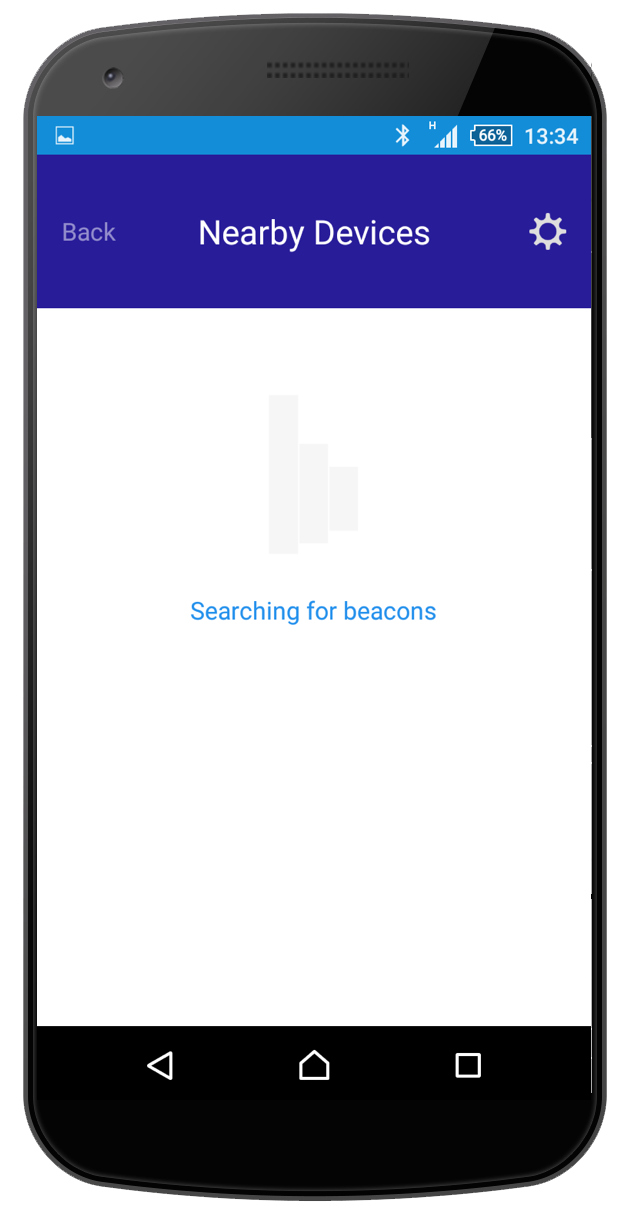
To successfully configure your Beacon please follow the steps below.
Configuration
Configuration needs to be done by using both the app and the physical web device. Please make sure that you have both your app and your beacon ready before you start.
1.Turn the back of your device and you will see three screws. Undo the screws on the backside of your device and take of the lid.
2.You will see a button on the left side of the part you have just unscrewed. By pressing on the button you will be setting your device to configuration mode.
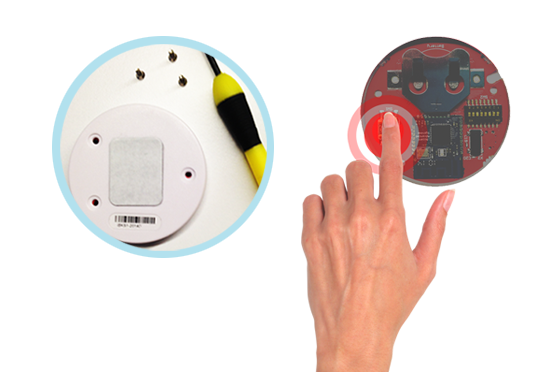
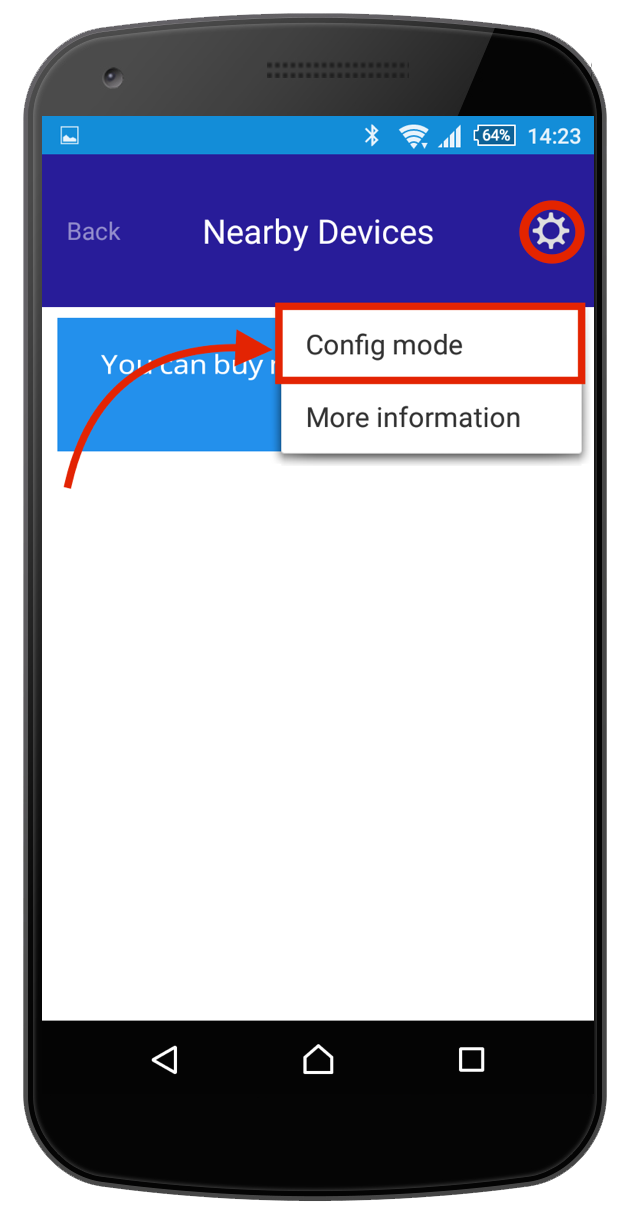
3.While doing this you will also have to choose config mode from inside of the application. You can do this by pressing on the settings button and selecting config mode which is located on the top right corner of your application .
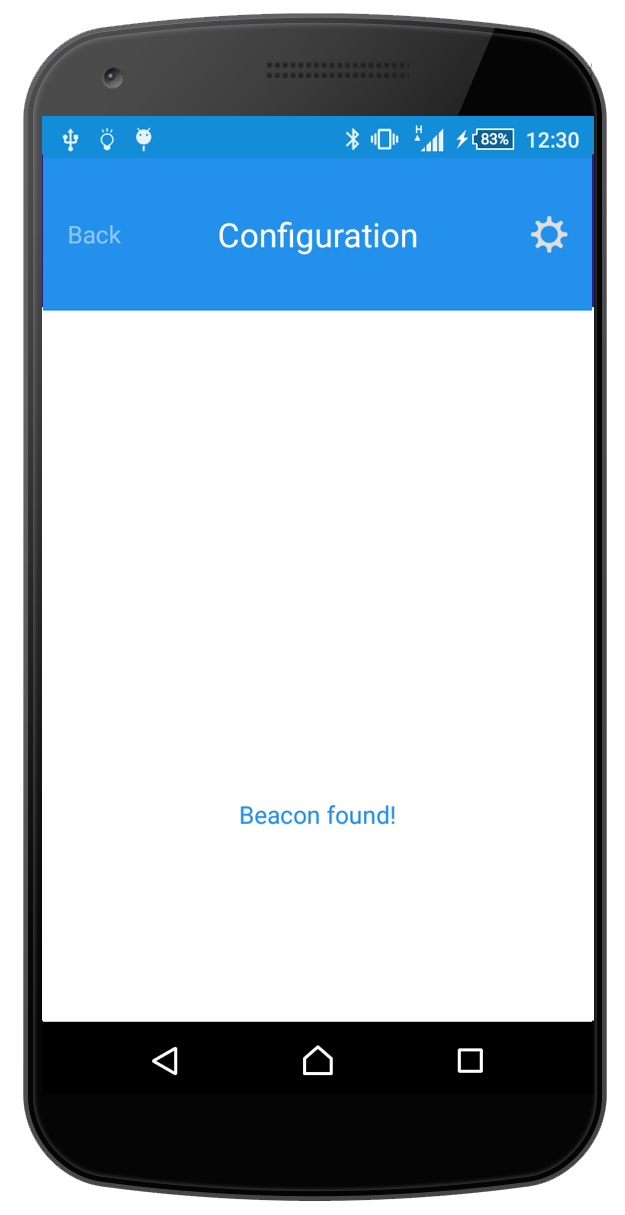
If every step was completed accordingly you will observe the "Beacon found!" notification on your smartphone screen. You should observe a page similar to the one down below.
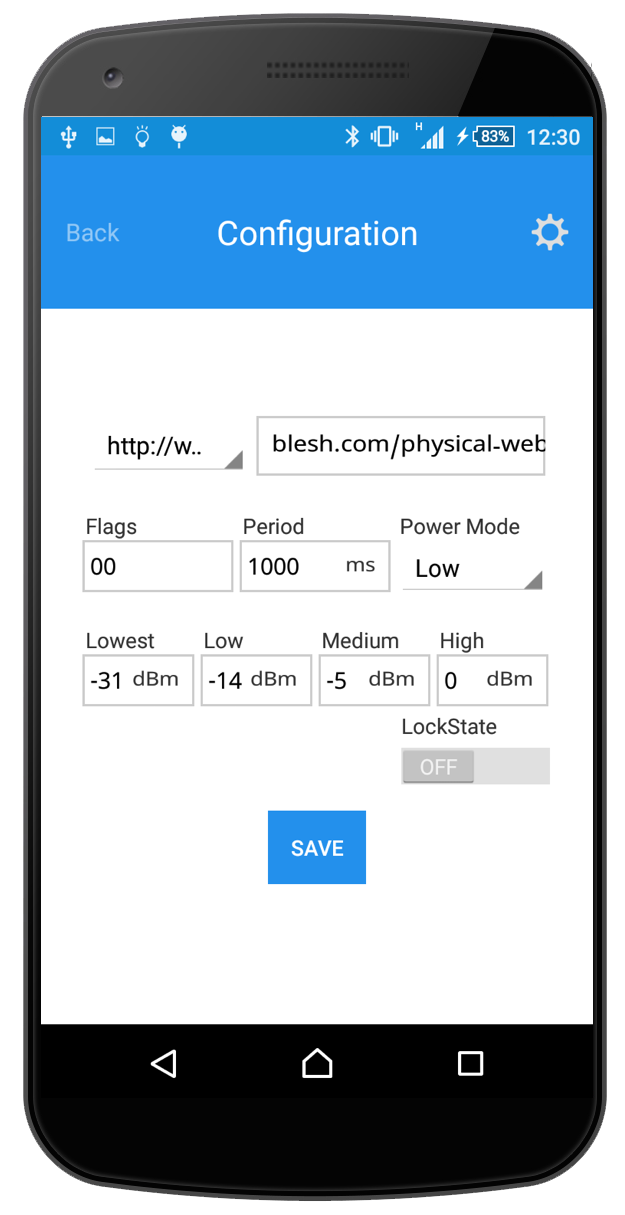
After a small pause the following page will be visible on your smart phone screen. On this page you can configure all the settings of your beacon such as setting the URL,Flags,Period,Power Mode... After completing the configuration process if you have created a password for your beacon you can turn on the LockState switch to on.
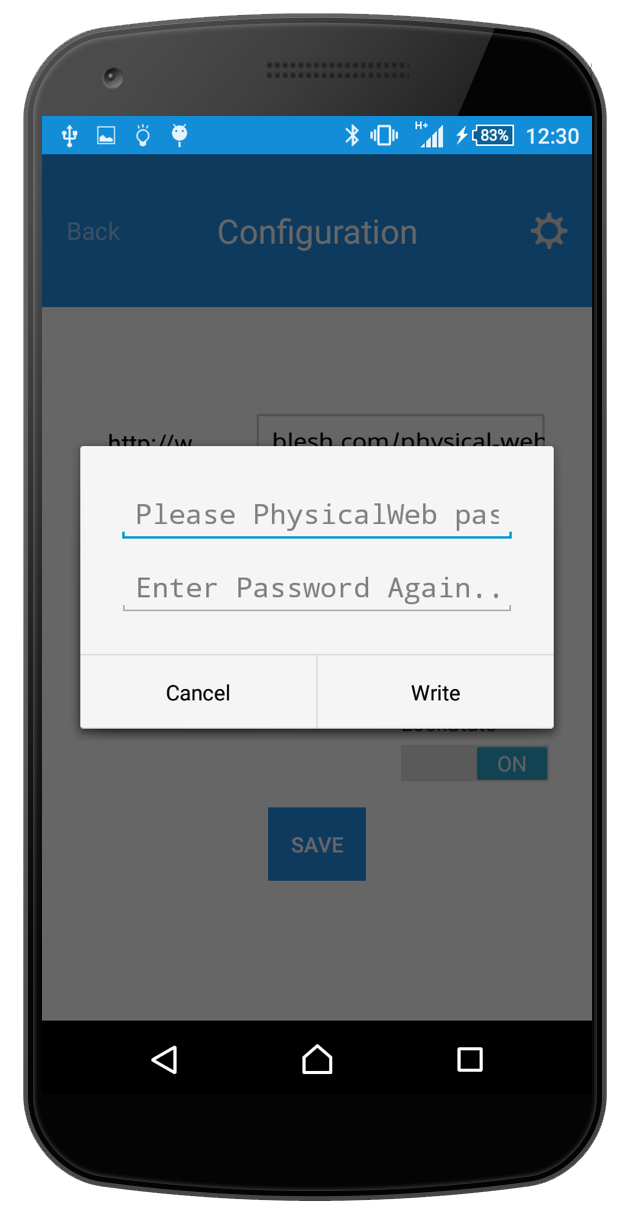
If you have not yet selected a password for your beacon pressing the switch will bring on the following password creation page. After selecting your password and clicking on the write button will set your password and the LockState switch will be turned on.
Beacon Password
Creating a password will protect other people from reconfiguring your beacon without your permission. We highly recommend you to set a password for your beacon.
Congratulations! You have successfully configured your very first beacon. If you have any further questions or are looking for more information and pro tips, try our community pages or you can always contact us at [email protected].
Updated less than a minute ago